How to Create a Screenplay from Scratch with AI
Learn how to use Clapperbie's AI Assistant to develop a logline, build character profiles, outline scene structure, and write a formatted short film draft.
Overview
Clapperbie includes a built-in AI Assistant designed to act as an incremental co-writer. Rather than generating generic blocks of plain text, the AI directly interacts with your project: populating character bibles, organizing scene outlines, and inserting formatted screenplay elements into the editor.
In this tutorial, you will build a complete short film from scratch using the AI Assistant:
- Title: The Last Message
- Logline: On the night before moving away, a young woman discovers a voicemail recorded by her late father that appears to have been sent from the future, forcing her to return to the abandoned cinema where they once watched films together.
Prerequisites: Connect Your AI Model
Before interacting with the AI Assistant, activate your API key in the footer and choose your model:
1. Activate Your API Key (Footer)
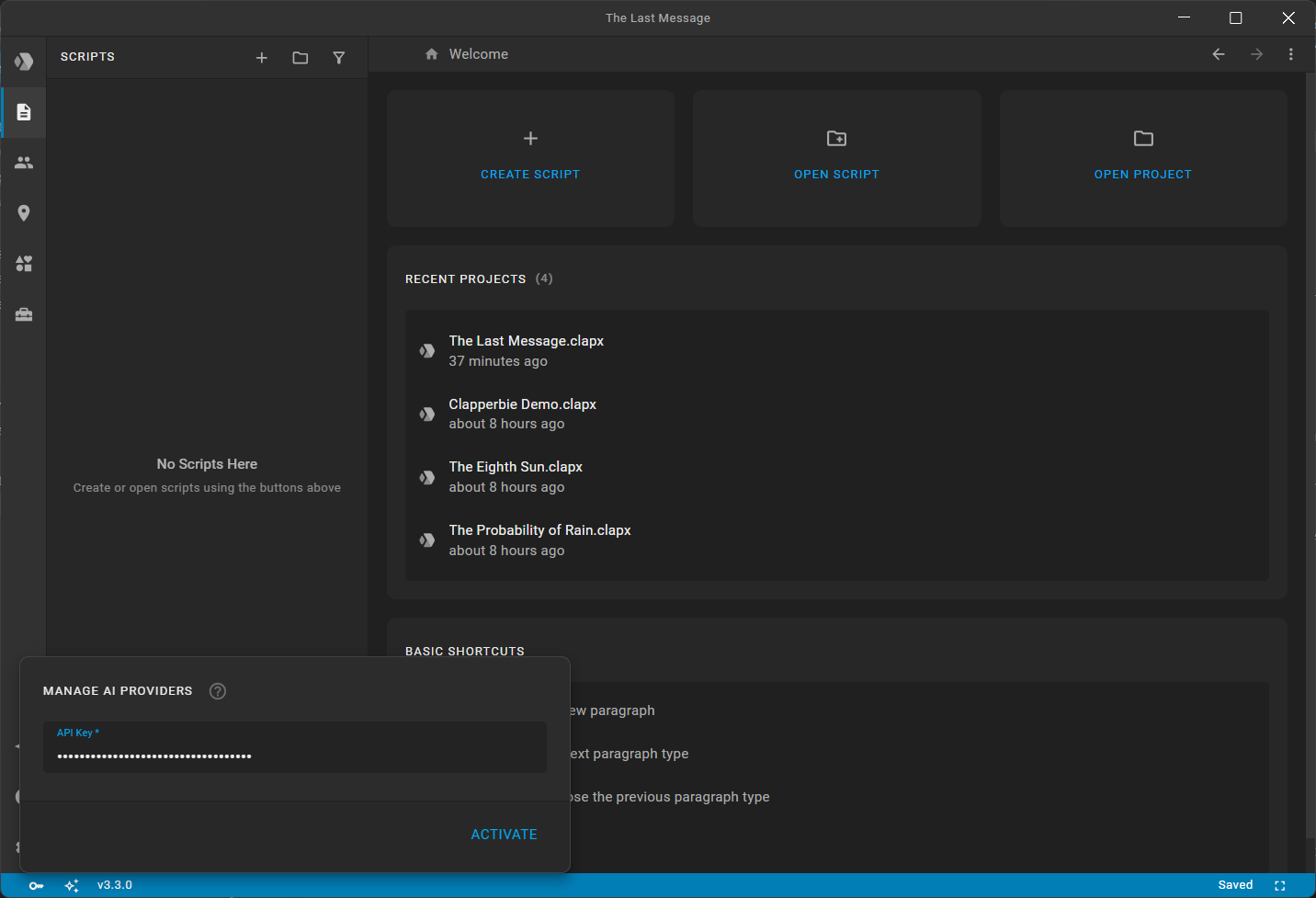
- Click the Manage AI Providers button (sparkle icon) in the bottom-left corner of the application footer.
- In the popover, enter your API Key (OpenAI, Anthropic, Google Gemini, or DeepSeek).
- Click Activate. Clapperbie automatically detects the provider based on your key format.
2. Select Your Model (AI Assistant Sidebar)
- Open the left sidebar and click AI Assistant (sparkle icon).
- In the AI panel header, click the Settings button (gear icon).
- Choose your desired Model from the dropdown (such as GPT-4o, Claude 3.5 Sonnet, or Gemini Pro).
Step 1: Establish the Concept and Project
Start by initializing the project with your core premise and thematic goals.
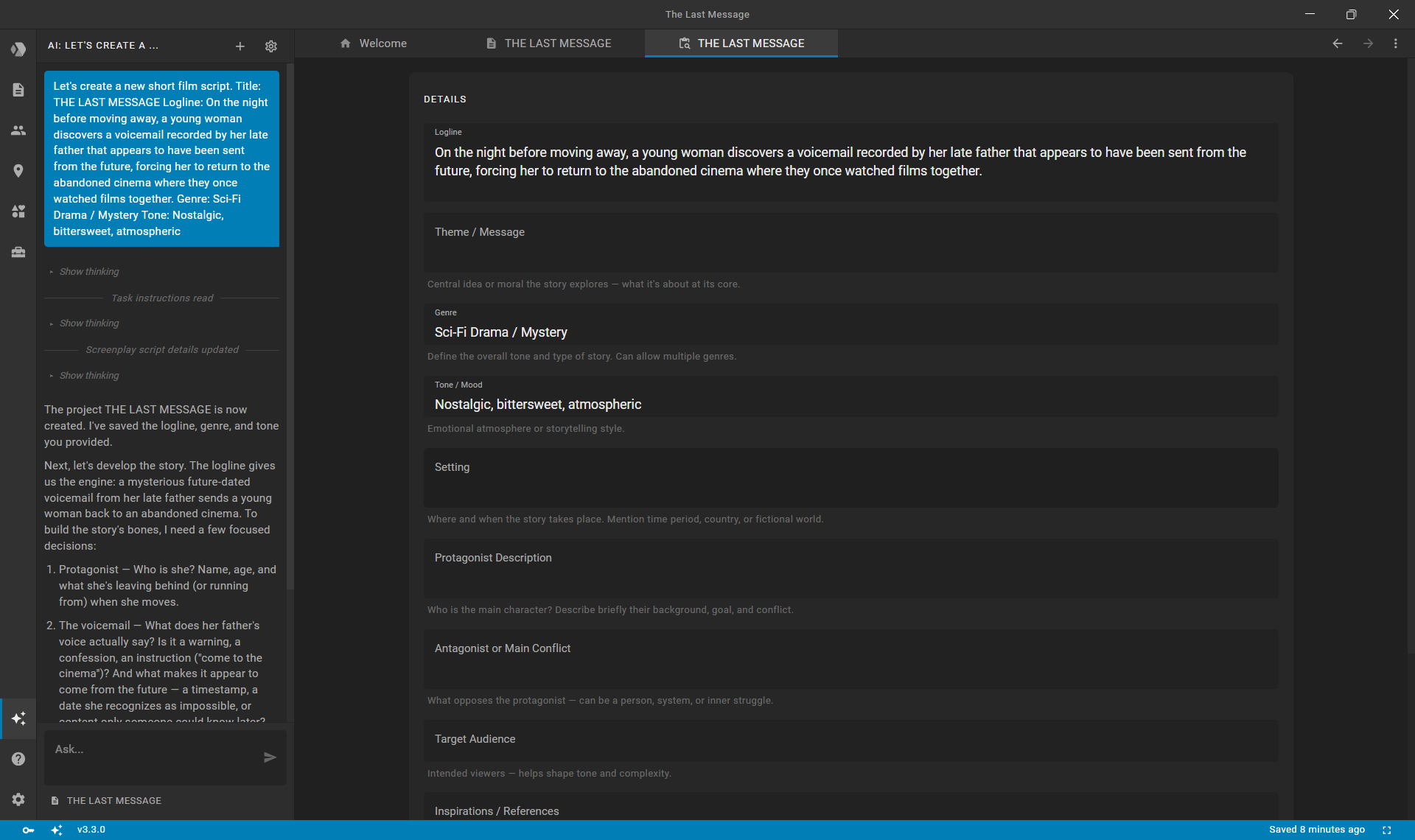
- In the AI Assistant panel, create a new chat by clicking the + (New Chat) action.
- Enter your opening prompt:
text
Let's create a new short film script. Title: THE LAST MESSAGE Logline: On the night before moving away, a young woman discovers a voicemail recorded by her late father that appears to have been sent from the future, forcing her to return to the abandoned cinema where they once watched films together. Genre: Sci-Fi Drama / Mystery Tone: Nostalgic, bittersweet, atmospheric - The AI confirms the premise, initializes the script in your project, and suggests a 3-act emotional progression.
Script Details: The Foundation for AI
When you establish the project concept, the AI Assistant saves the logline, genre, tone, setting, theme, and synopsis directly into your screenplay's Details editor (accessible via the Scripts sidebar -> ... -> Details).
This metadata tab serves as the single source of truth and foundational anchor for the AI. In all subsequent steps—from fleshing out character traits to maintaining dialogue continuity—the AI references these details to keep your narrative cohesive.
Step 2: Develop Character Profiles
Before writing dialogue, flesh out the key characters. Clapperbie's AI can automatically create character records with backstory, character summaries, and dramatic motivation.
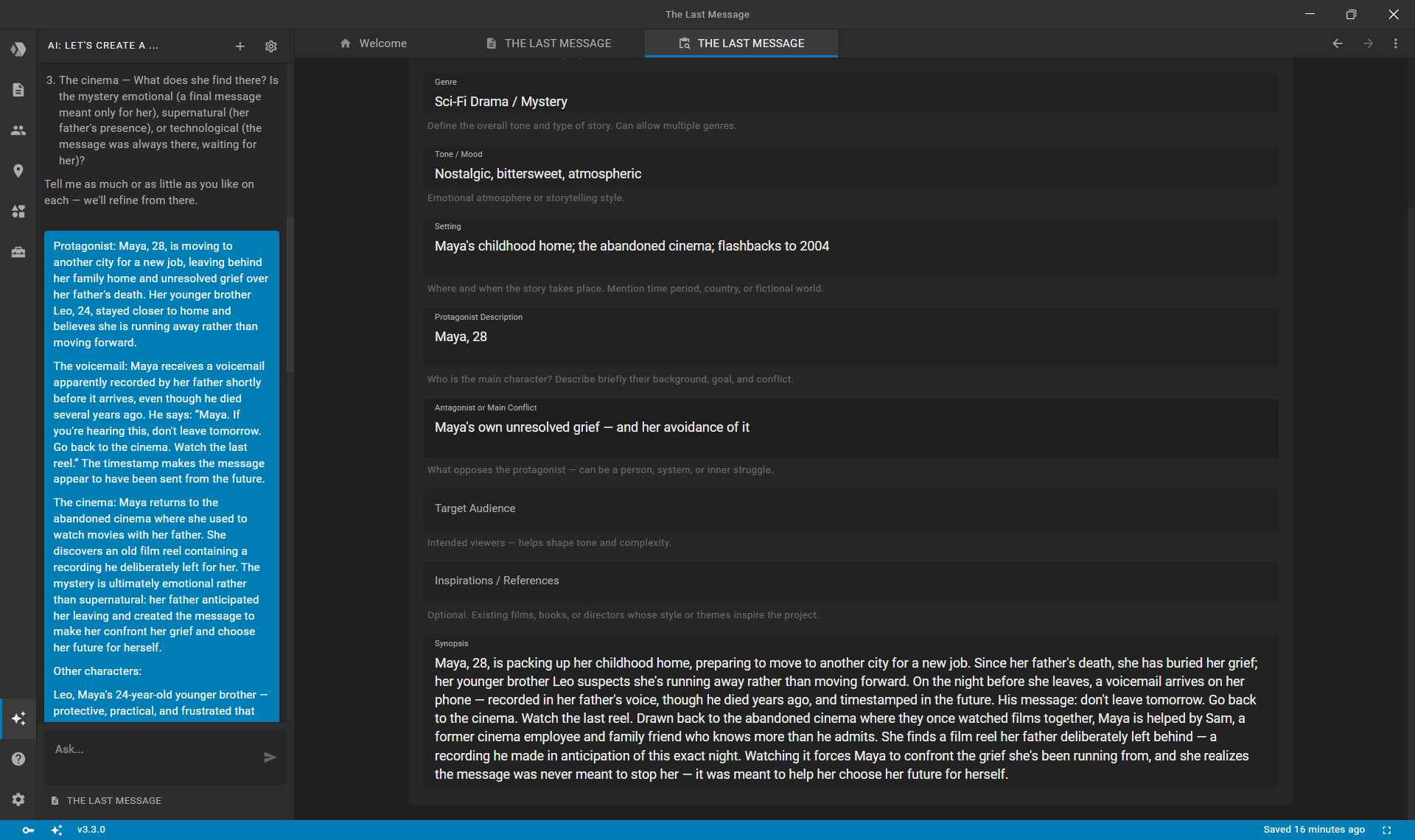
- Send the following prompt in the chat:
textProtagonist: Maya, 28, is moving to another city for a new job, leaving behind her family home and unresolved grief over her father's death. Her younger brother Leo, 24, stayed closer to home and believes she is running away rather than moving forward. The voicemail: Maya receives a voicemail apparently recorded by her father shortly before it arrives, even though he died several months ago. He says: “Maya. If you're hearing this, don't leave tomorrow. Go back to the cinema. Watch the last reel.” The timestamp makes the message appear to have been sent from the future. The cinema: Maya returns to the abandoned cinema where she used to watch movies with her father. She discovers an old film reel containing a recording he deliberately left for her. The mystery is ultimately emotional rather than supernatural: her father anticipated her leaving and created the message to make her confront her grief and choose her future for herself. Other characters: Leo, Maya's 24-year-old younger brother — protective, practical, and frustrated that Maya is leaving. Sam, 30 — a former cinema employee and family friend who knows more about the recording than he initially admits. Maya's Father — deceased; appears through the voicemail, old recordings, and a 2004 flashback.
- The AI generates detailed profiles for Maya and Maya's Father, including physical descriptions and emotional arcs.
- Open the Characters section in the left sidebar to verify that both profiles have been added to your project's character index.
Step 3: Structure the Scene Outline
Next, structure the short film into sequential scenes. The AI builds standard scene headings and beat descriptions that materialize directly onto your Index Cards board.
Collaborative Structural Refinement
The AI acts as a creative collaborator. Before generating the outline, it may suggest a dramatic structure or ask focused clarifying questions to refine your narrative choices:
- Target Length: “Short films usually run 8–15 pages. Any target? (Say ~10 pages if you don't have a preference.)”
- Character Roles in Act III: “Does Leo show up at the cinema (e.g., worried, following her), or does the resolution stay between Maya and the reel?”
- Key Revelations: “Was Sam the projectionist who helped her father make the recording, or did he simply find it and keep it safe? Which feels right to you?”
You can answer these questions and let the AI propose an optimized scene progression, or provide your own explicit scene outline directly in the chat:
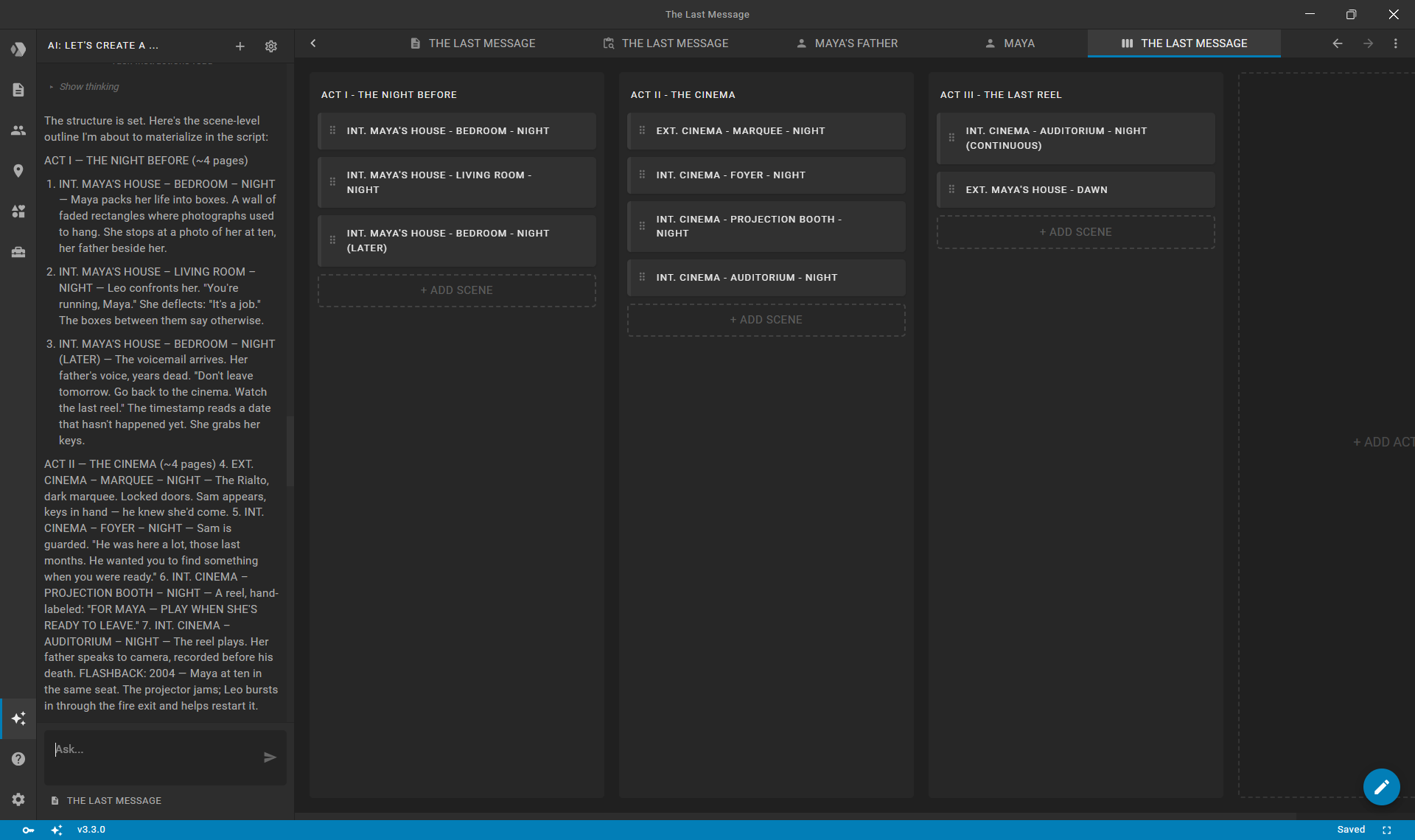
- Send your preferred scene outline (or approve the AI's structural suggestion):
text
Outline a 5-scene structure for this 8-minute short film: - Scene 1: Maya packing in her empty apartment, finding the futuristic voicemail. - Scene 2: Driving through rainy city streets at midnight toward the abandoned Rialto Cinema. - Scene 3: Entering the dust-covered theater lobby and navigating the dark auditorium. - Scene 4: Reaching the projection booth, discovering the projector running on a timer. - Scene 5: Watching a personal message projected on the big screen, finding closure before sunrise. - The AI reviews the dramatic pacing and inserts the scene sluglines into the script.
- Switch to the Index Cards view from the Scripts menu to review the visual corkboard layout.
Step 4: Write and Polish Scenes Incrementally
Write the screenplay scene-by-scene. Generating incrementally gives you full control over dialogue tone, subtext, and pacing.
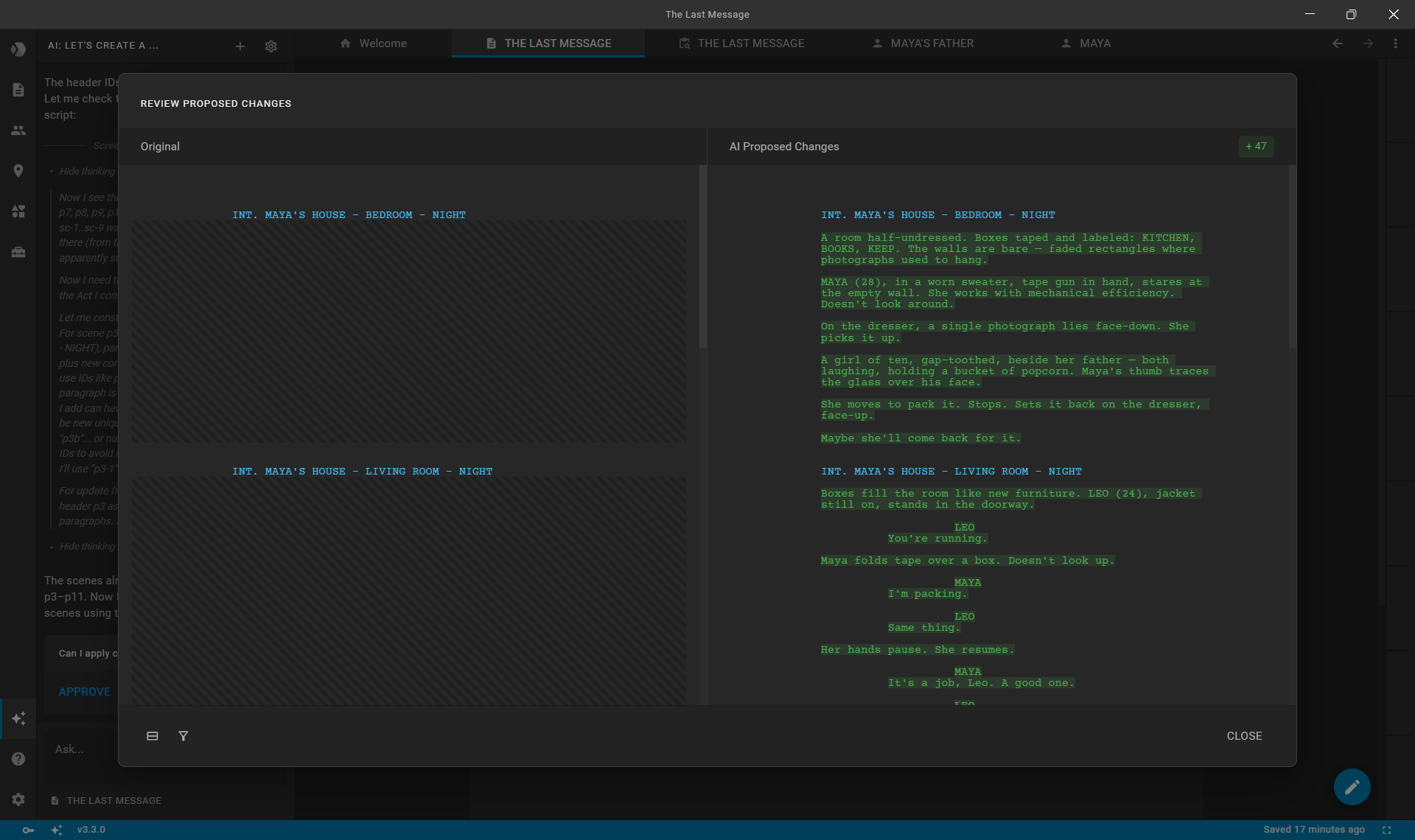
- Prompt the AI to write the opening scene:
text
Write Scene 1: INT. MAYA'S APARTMENT - NIGHT. Maya tapes up the final moving box. The apartment is barren except for her phone charging on the floor. An unfamiliar timestamp flashes on the lock screen: a voicemail received 'Tomorrow, 03:15 AM'. Write with visual, economical action lines and grounded dialogue. - The AI writes the formatted screenplay blocks (Scene Heading, Action, Character, Dialogue).
- Review the proposed changes in the editor. Clapperbie inserts the formatted lines into your active script tab.
- If you want to adjust a specific beat (e.g., “Make Maya’s reaction more subdued and focus on the ticking clock”), ask the AI for a revision or edit the text directly.
Step 5: Review and Export
Once all scenes are written and polished:
- Use the Scenes navigator in the editor's floating action menu to read through the entire draft.
- Press
Ctrl + Alt + P(Cmd + Option + Pon macOS) to export your formatted short film draft to PDF.