Managing Script Revisions and Color-Coded Drafts
Learn how to save development drafts, lock your screenplay for prep, manage industry color-coded revisions, compare diffs, and restore snapshots.
Overview
During development, screenwriters iterate through multiple drafts to refine story beats. Once a project enters pre-production, scripts are locked so department heads can rely on fixed scene and page numbering. Any subsequent changes require color-coded revision tracking.
In this tutorial, you will:
- Save development drafts from the Versions panel.
- Lock your screenplay status for production.
- Generate color-coded production revisions (White, Blue, Pink, Yellow, and beyond).
- Compare changes between versions using split and unified diff views.
- Restore earlier script states or export specific revision snapshots.
Step 1: Save Development Drafts
While developing your screenplay, save milestone snapshots whenever you complete a major rewrite, polish, or pass.
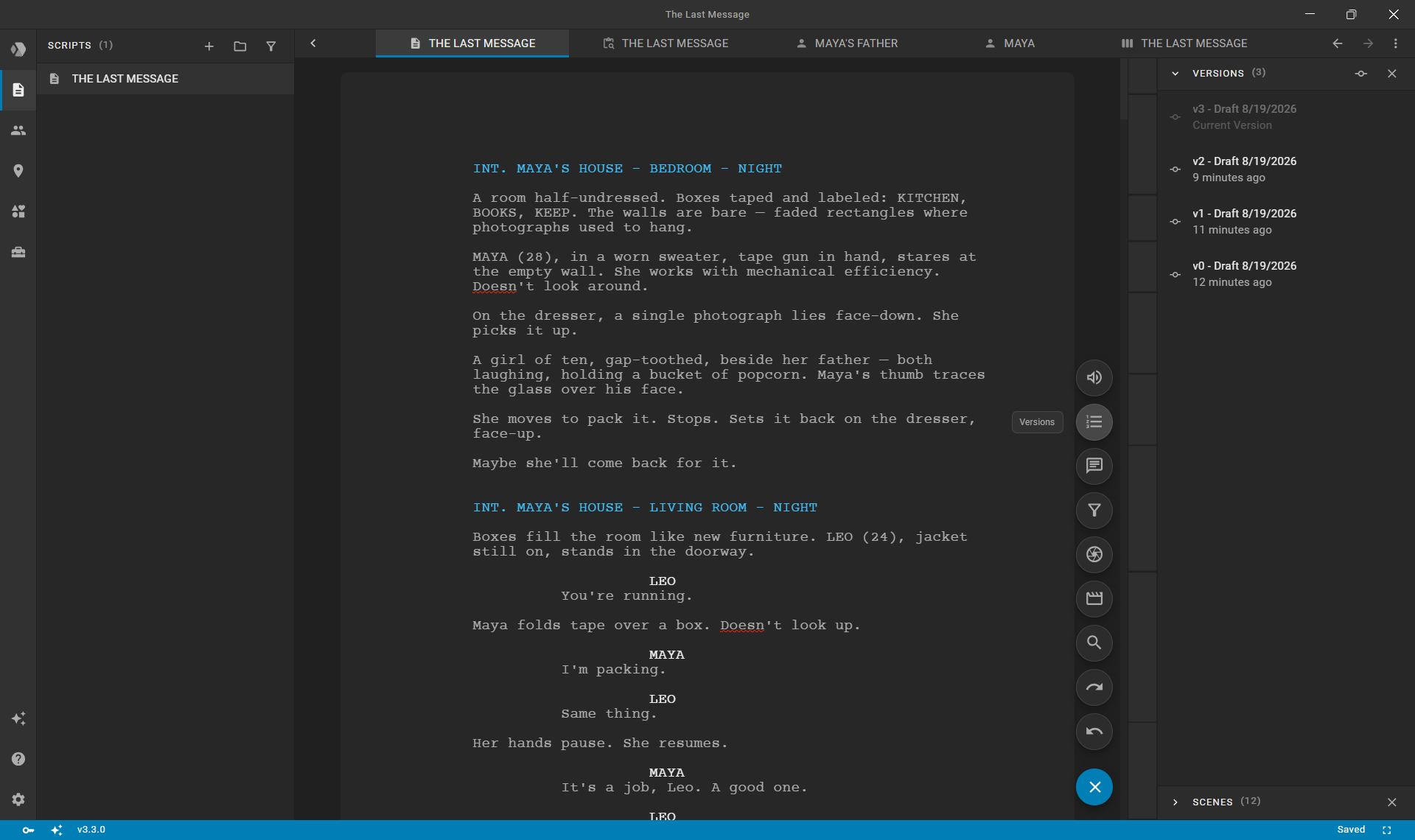
- Open your script in the editor.
- Click the floating action button on the bottom right and select Versions.
- In the Versions panel header, click the Save Draft action.
- Confirm the dialog.
Clapperbie creates a timestamped milestone (such as Draft 1, Draft 2). The top entry in the list always represents your live Current Version.
Real-Time Change Highlighting in Drafts
As you continue writing after saving a draft, Clapperbie automatically highlights modified lines directly in the script editor relative to your last saved milestone.
This visual feedback is useful during the writing process:
- Clear Edit Context: You immediately see which dialogue cues or action lines were modified in your current pass without having to remember every alteration.
- Confident Rewrites: You can experiment freely and trim dialogue, knowing exactly what has changed before you commit your next milestone draft.
Tip: Saving drafts does not freeze scene numbers or page breaks; it simply creates restorable historical snapshots while you freely rewrite.
Step 2: Lock the Script for Production
When the screenplay is approved for prep, table reads, or filming, lock the script to freeze the scene order and page layout.
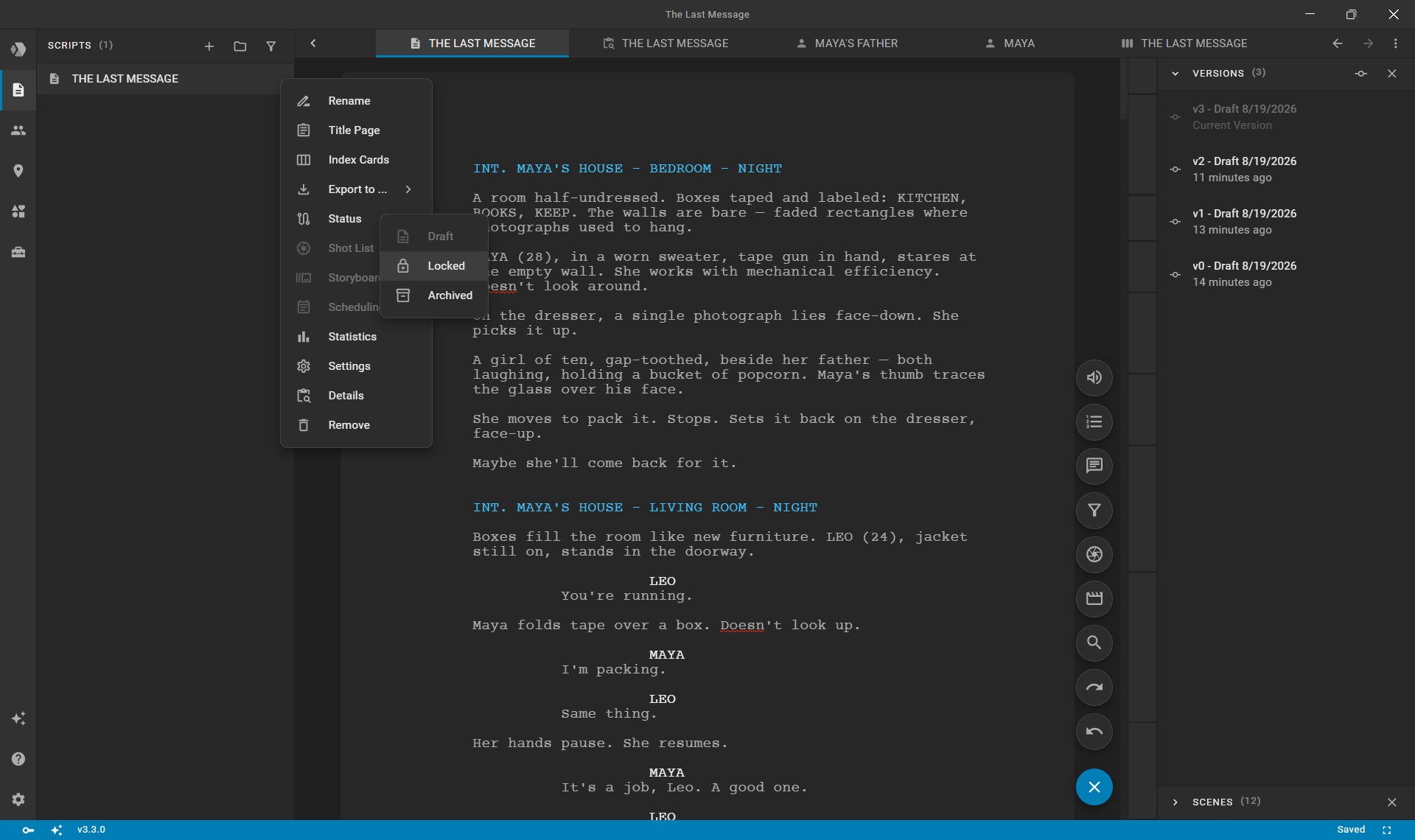
- Open the Scripts section in the left sidebar.
- Click the actions menu (
...) next to your script. - Select Status and choose Locked.
Locking the script preserves scene numbering across departments (1st AD, Script Supervisor, Camera, Art Department).
Step 3: Create Color-Coded Revisions
Once a script is locked, all new edits are tracked as production revisions following the standard industry color cycle:
- White (Full production draft)
- Blue (First revision)
- Pink (Second revision)
- Yellow (Third revision)
- Green (Fourth revision)
- Goldenrod (Fifth revision)
- Buff (Sixth revision)
- Salmon (Seventh revision)
- Cherry (Eighth revision)
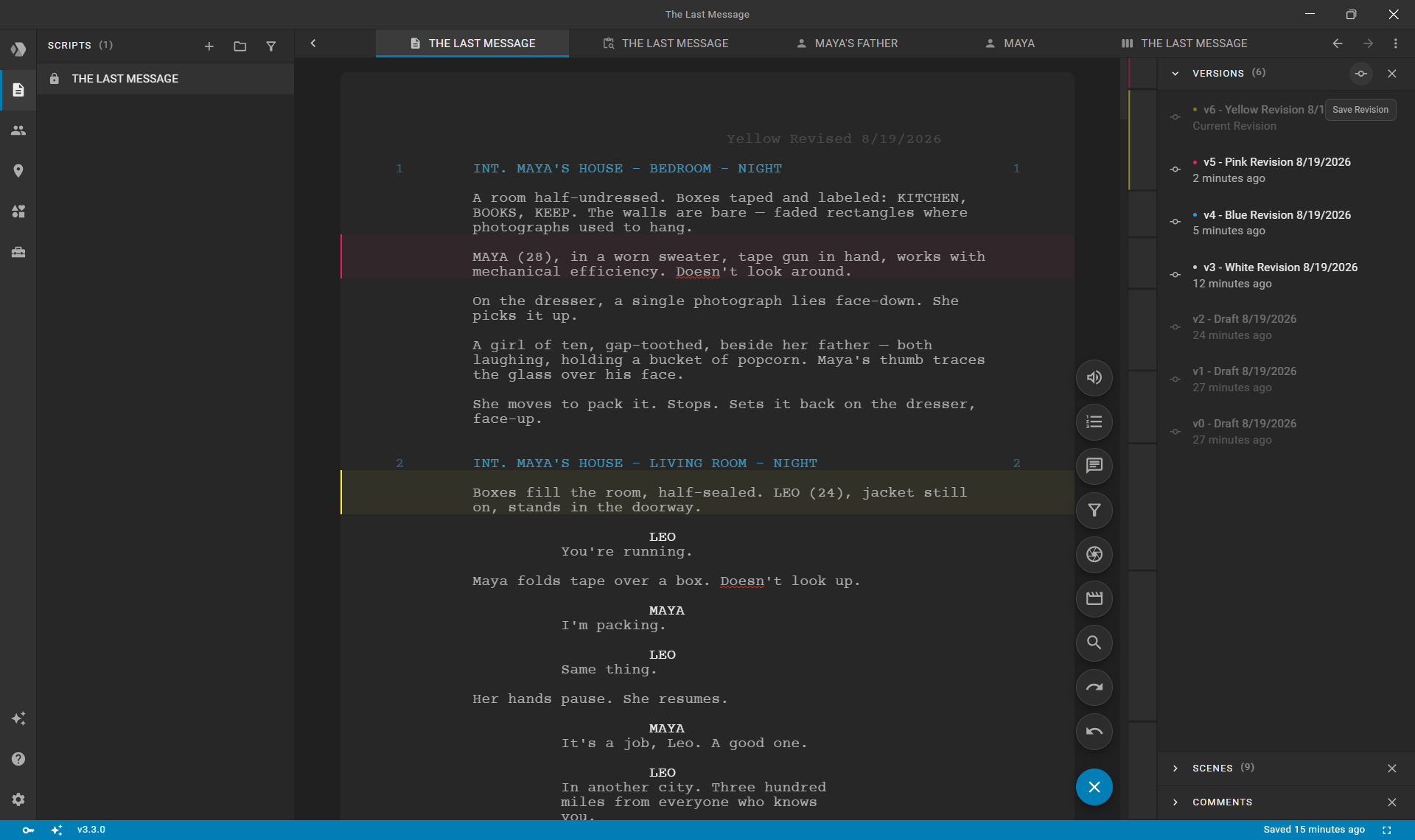
- Make your text edits in the locked script.
- Open the Versions panel. Notice that the button now displays Save Revision.
- Click Save Revision and confirm.
Clapperbie logs the revision with its corresponding color badge and timestamp.
Visual Revision Bars in the Editor
In locked mode, modified paragraphs display a colored left border and subtle background tint matching the active revision color (e.g., Blue, Pink). The Story Map outline on the right also marks revised scenes with their corresponding color, giving directors and script supervisors immediate visual clarity on which scenes contain updated pages.
Step 4: Compare Changes Across Drafts and Revisions
To verify what changed between revisions or check an earlier draft against your current text:
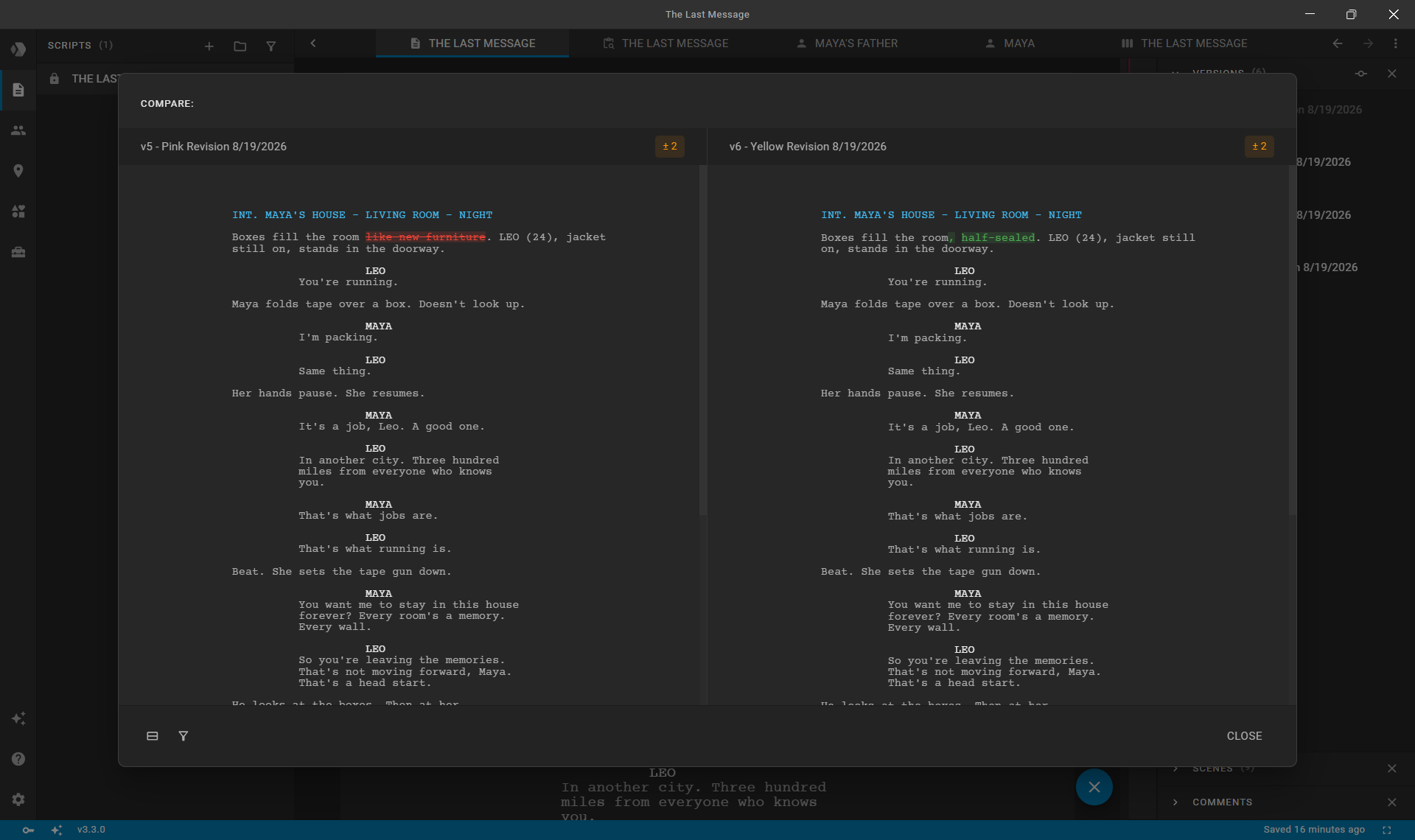
- In the Versions panel, click the actions menu (
...) next to any version. - Select Compare and choose the comparison target (such as another revision or the live Current Revision).
- In the Compare dialog:
- Split View / Unified View: Toggle between a side-by-side comparison and an inline diff highlighting added and deleted lines.
- Show Only Changed Scenes: Filter out untouched scenes to inspect only modified dialogue, action, and sluglines.
Step 5: Restore Snapshots or Print Revisions
Restoring a Version
If a rewrite direction does not work out, roll back your screenplay to any previous state:
- In the Versions panel, click on a past version or click its actions menu (
...) and select Restore. - Confirm the prompt warning that uncommitted live edits will be replaced.
- Clapperbie restores the entire script document to that historical milestone.
Printing a Specific Revision
To export a PDF snapshot of a previous revision without switching your active editor:
- Click the actions menu (
...) on a revision entry. - Select Print.
- Clapperbie generates and downloads the PDF reflecting that exact revision point.